
Blog · · By Matt Senter
How to Make It Snow on Your Mac Desktop
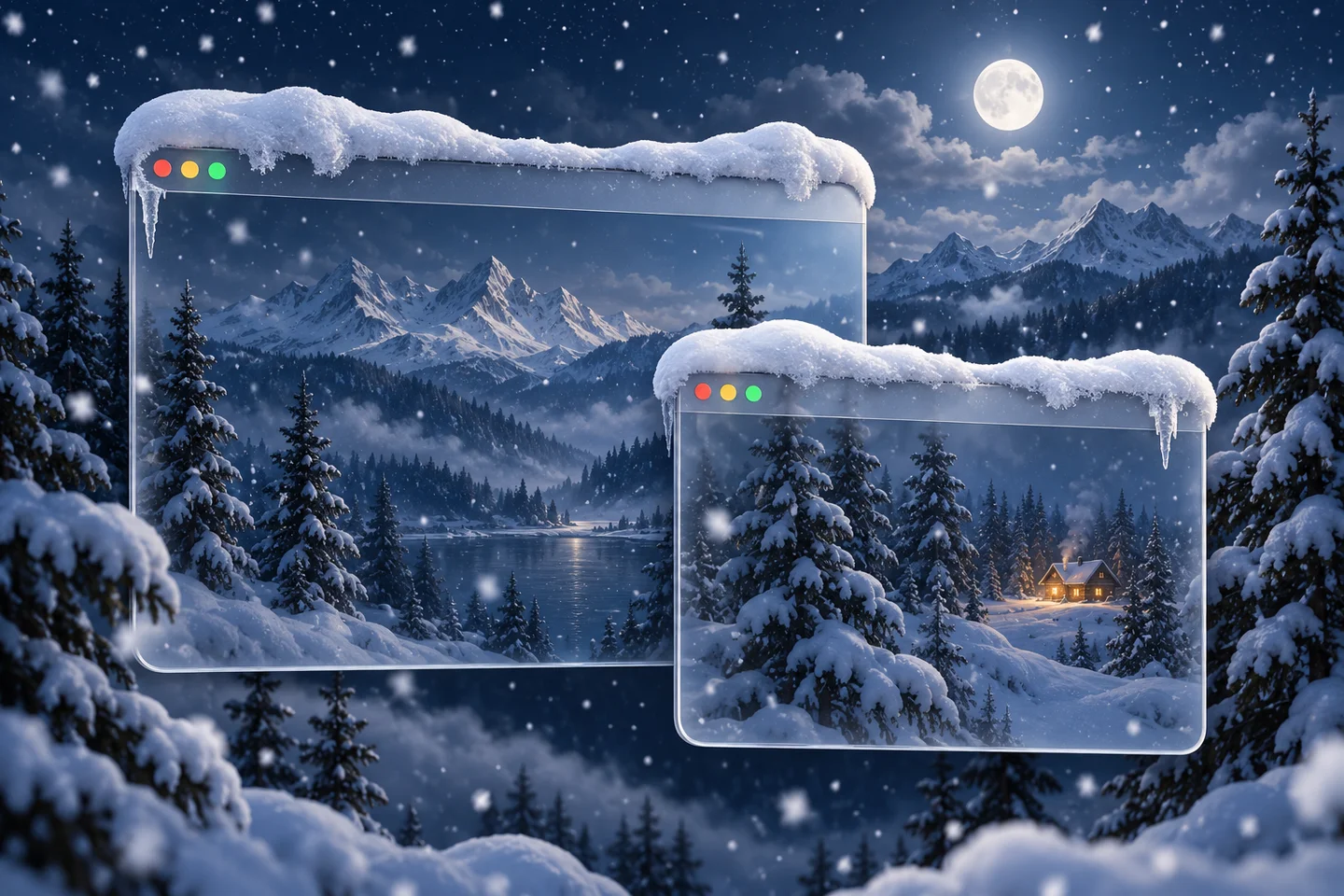
Weatherling makes snow fall among your Mac windows. It settles along the tops of your windows, rides along when you move them, and tumbles down when its perch goes away. Here’s how to set it up and make it your own.
Start with snow
- Install Weatherling from the App Store and open it. Its controls live in the menu bar.
- Click the Weatherling menu bar icon and turn on the weather effects.
- Move the Snow slider up. For snow alone, turn the other effects off with the off button at the left end of each slider.
- Give it a minute with a few windows open. Snow builds up along every exposed window top, so you can watch it gather while you keep working.
How the snow behaves
Snow lands on the top edge of every window it can reach. Move a window and its snow comes along. Close it or cover it with another window, and the snow tumbles down, settles, and melts away.
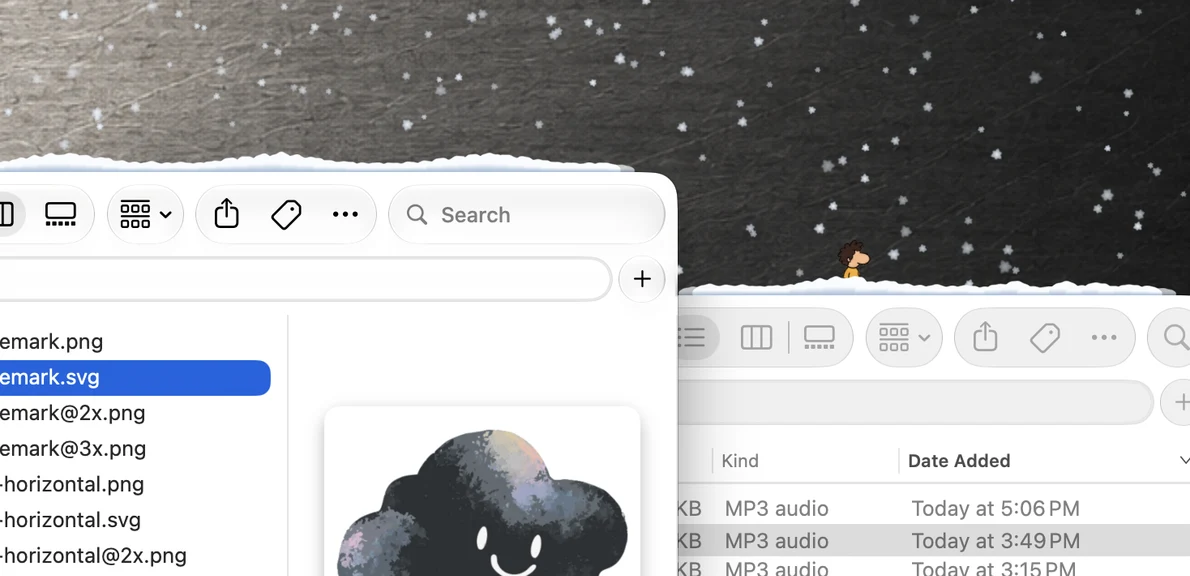
Wind drifts the falling snow sideways, and Depth sets how far the flakes recede behind your windows. Each has Fixed and Random settings, so you can hold it steady or let it shift on its own.
Mix snow with rain, or let it change
Rain and Snow are separate sliders, so you can have only snow, a wintry mix, or rain with a few flakes in it. For a mix that changes through the day, click the shuffle button at the right end of the Snow slider to put it on Random. The Randomize switch at the top of the Weather card puts every control on Random at once.
Let it snow when it snows outside
Turn on Sync with Your Weather and Weatherling follows the conditions where you are, using Apple Weather, so snow falls on your desktop when it’s snowing outside. Type a city or ZIP code, or use your Mac’s approximate location; macOS asks for permission only if you choose that. Invert does the opposite, if you’d rather have sunshine on a snowy day.
Make it comfortable to leave on
Sound is optional and off by default. Snow is quieter than rain: as the weather turns snowy, the rain sound eases off. Set the rain and snow volume in Weatherling, apart from your other audio.
In Settings, choose all displays or only the ones you want. Fall over full-screen apps decides whether snow keeps falling in front of full-screen or maximized apps. The snow is click-through, so you can click, type, and drag as usual.
Leave Automatic on under Performance to start. If you want the app to do less work while you’re unplugged, move the slider toward Least Energy or turn on Pause on battery power.
More to read
- How to Make It Rain on Your Mac Desktop
- Weatherling 1.6: Sync or invert local weather, now with fog
- How Weatherling uses window positions without Screen Recording permission
- Smoothness, battery settings, and performance details
Next steps
What one App Store reviewer says
“Cozy Weather App”
“Nice simulated rain effect for those days when you’re in bed working. Does not track you either so always a plus for me!”