
Blog · · By Matt Senter
How to Make It Rain on Your Mac Desktop
You can make rain fall around your actual Mac windows with Weatherling. Drops land on window tops and fall away when you move or close them. Here’s how to start with rain, then try the changing mix I leave running all day.
Start with rain
- Install Weatherling from the App Store and open it. Its controls live in the menu bar.
- Click the Weatherling menu bar icon and turn on the weather effects.
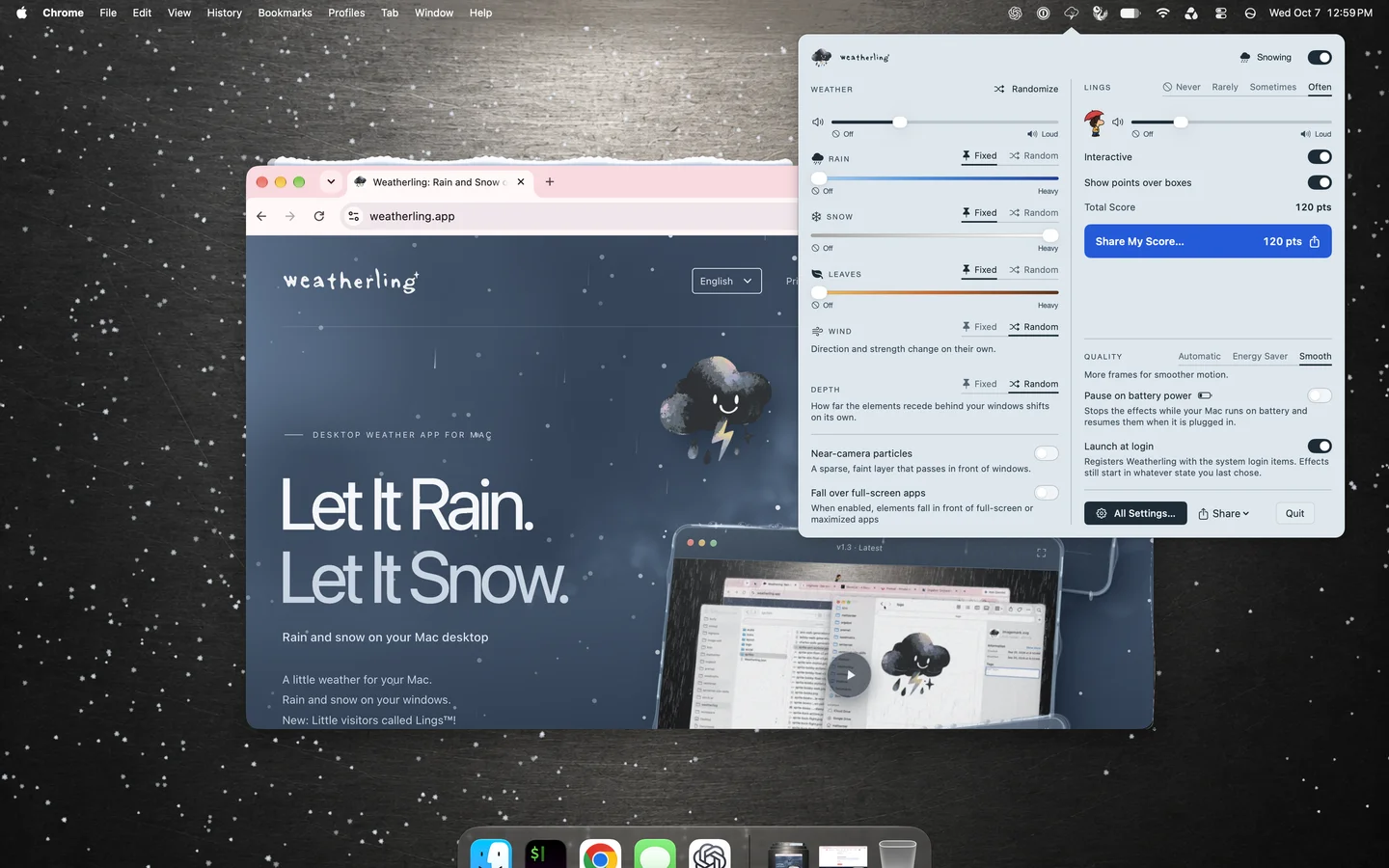
- Set Rain to Fixed and move its slider up. Set Snow and Leaves to Fixed and move their sliders to Off if you want only rain.
- Leave a couple of windows open, then move one or close it. Watch what happens to the rain resting on top. You can keep using your apps while the weather runs.
My setup: everything on Random
I set everything to Random and leave it running all day. Rain, snow, leaves, wind, depth—all five. I like the variety: I don’t have to keep choosing a different kind of weather.
To try the same setup, choose Random for Rain, Snow, Leaves, Wind, and Depth. The Randomize button is a shortcut that puts all five into Random mode. It disappears once everything is already set to Random. The weather keeps changing on its own; this isn’t just a single shuffle.
If you find a mix you want to keep, switch the controls you want to hold steady back to Fixed and adjust their sliders. You can also keep rain steady while leaving wind and depth on Random.
Make it comfortable to leave on
Sound is optional and off by default. Enable the rain and snow sound if you want it, then adjust Weatherling’s own volume. It mixes with other audio, so you can also leave the weather silent while listening to something else.
In Settings, choose all displays or just the ones where you want weather. You can decide whether effects fall over full-screen apps and whether the sound continues when those apps pause the effects.
Try the Automatic quality setting first. Energy Saver and Pause on battery power are available if you want to reduce the work the app does while you’re unplugged.
How it works around your windows
- How Weatherling uses window positions without Screen Recording permission
- Rendering quality, battery settings, and performance details
Lings are optional company alongside the weather. You can explore them later; rain, snow, and leaves are enough to start with.
What one App Store reviewer says
“Cozy Weather App”
“Nice simulated rain effect for those days when you’re in bed working. Does not track you either so always a plus for me!”