
How to use Weatherling
Everything Weatherling does, one screen at a time. The same guide lives inside the app too: open All Settings and choose Help.
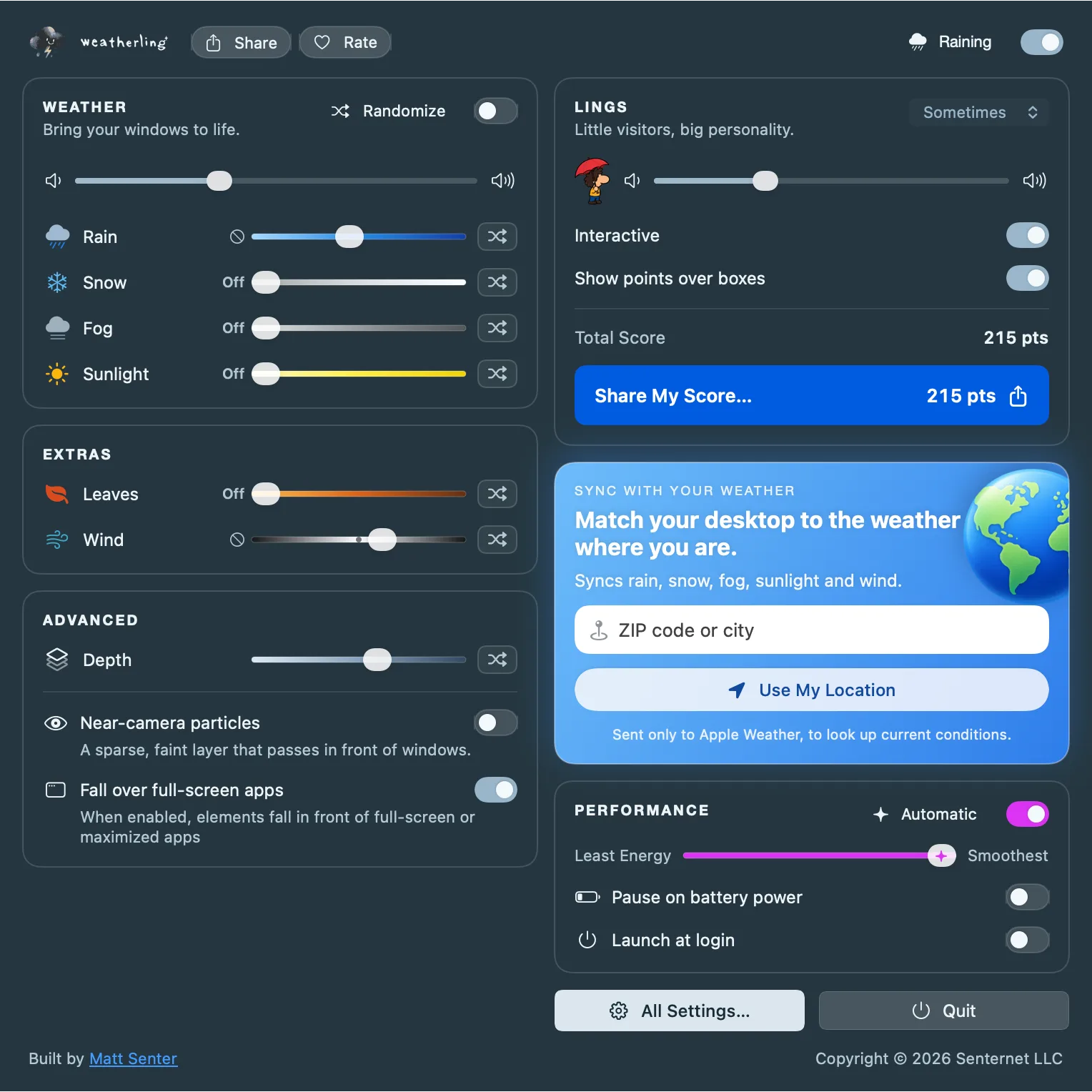
Start the weather
- Get Weatherling from the Mac App Store and open it. A small cloud appears in your menu bar; that is where Weatherling lives.
- Click the cloud to open the tray.
- Turn on the switch in the top right corner. Rain starts falling behind and around your windows, and the label beside the switch tells you what the weather is doing.
Option-click the cloud at any time to turn the weather on or off without opening the tray.
The weather never takes a click or a keystroke. Keep typing, scrolling and dragging windows as usual; the water follows your windows as they move.
Mix your own weather
Each slider in the Weather and Extras cards sets one effect: rain, snow, fog, sunlight, autumn leaves and wind. Use as many at once as you like.
- The off button at the left end of a slider turns that effect off.
- The shuffle button at the right end hands the effect to Random, so it drifts on its own. Randomize, at the top of the Weather card, is a switch: turn it on to hand every effect to Random at once, or off to keep everything where it is.
- Depth sets how far the weather recedes behind your windows. Near-camera particles add a faint layer in front of them.
- Performance has an Automatic switch that adapts smoothness to each display. Turn it off to set the slider yourself, from Least Energy to Smoothest; smoother motion uses more energy. Pause on battery power stops the weather until your Mac is plugged in.
Sync with your weather
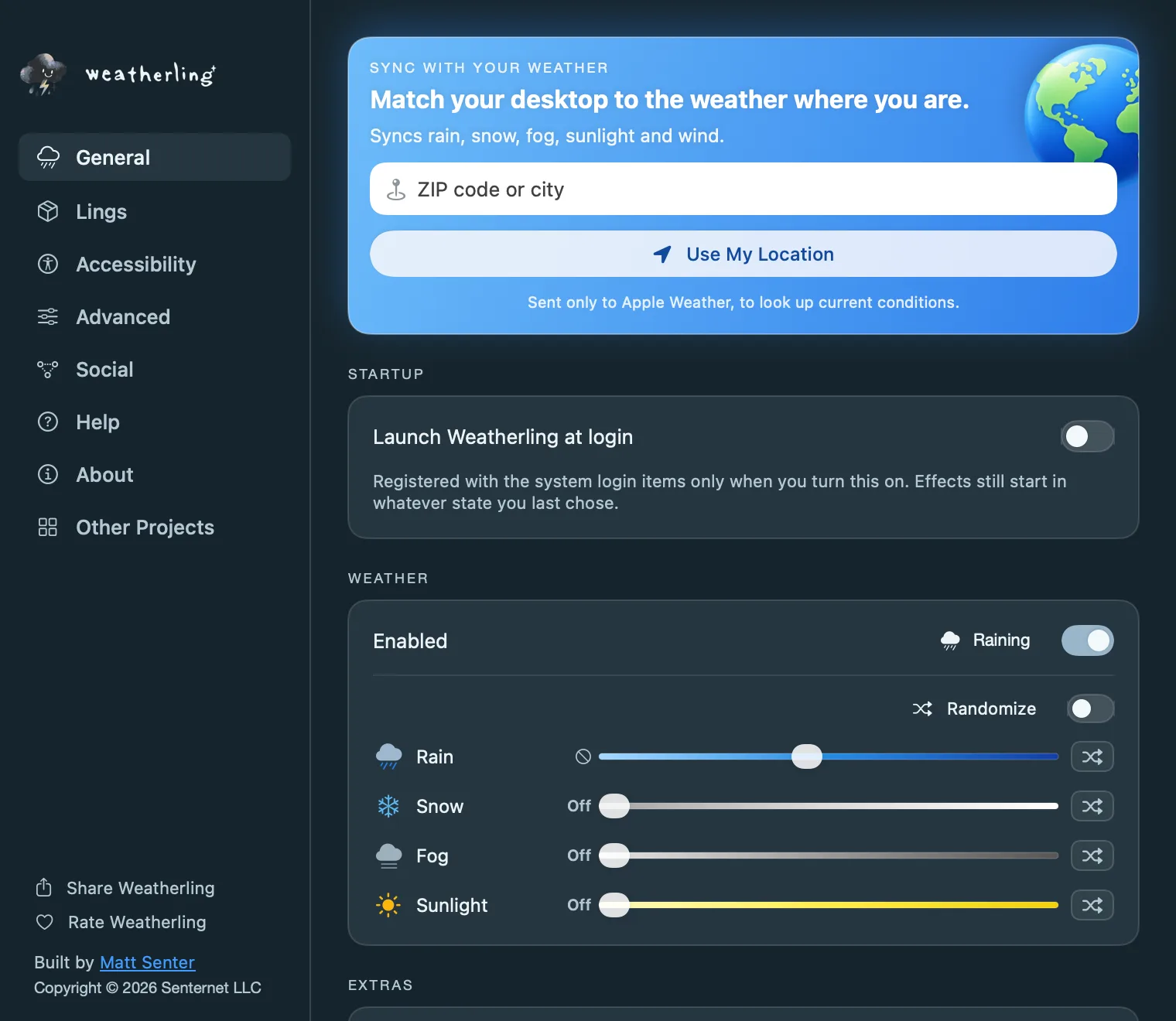
Type a ZIP code or city, or click Use My Location, and Weatherling matches your desktop to the weather outside: rain, snow, fog, sunlight and wind. Your place is sent only to Apple Weather, to look up current conditions.
Synced sliders show a location arrow. Move one and syncing pauses so your change sticks; click Resume Syncing to pick it back up, or Stop Syncing to go back to your own mix.
Turn on Invert for the opposite of your weather. Rain or snow outside brings sunshine to your desktop, brighter the harder it comes down. A dry sky brings rain, harder the clearer it is, or snow on hot days of about 27 °C (81 °F) or more. Fog clears, calm days turn breezy, and windy days go still.
Meet the Lings

Lings are little visitors who turn up now and then, even in dry weather. Choose how often in the Lings card: Rarely, Sometimes, Often, or Never.
Turn on Interactive to pick them up. Click and hold a Ling and it dangles from the pointer while boxes rise from the bottom of the screen. Drop it into a box to collect points; let go anywhere else and it drops back down.
Some Lings and boxes are rarer than others. Your collection and total score are in the Lings pane of All Settings, and Share My Score… turns them into a card you can post.
Interactive is off until you turn it on. While it is off, Lings ignore your mouse entirely.
Accessibility
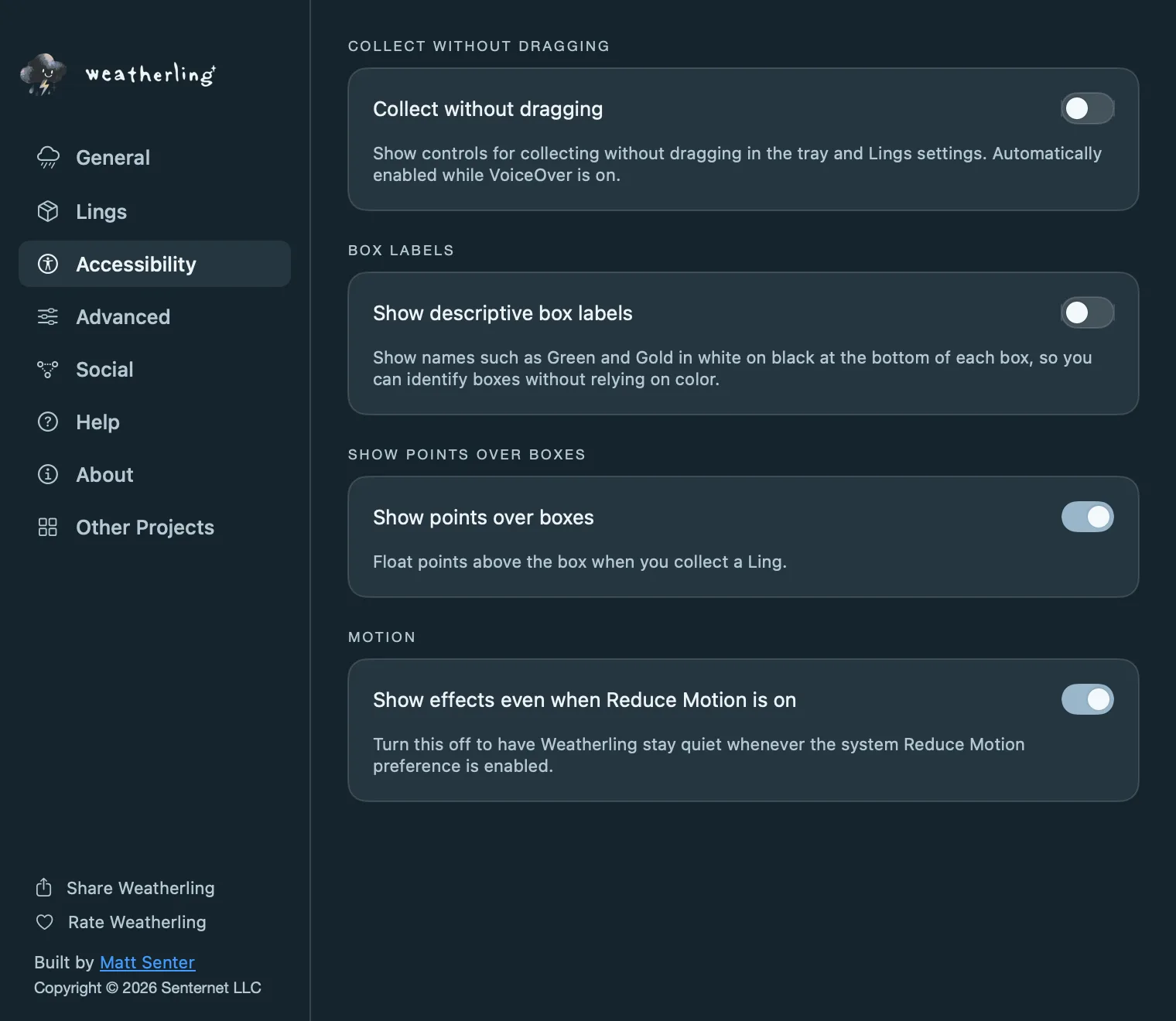
Prefer not to drag? With Interactive on, turn on Collect without dragging in the Accessibility pane. The tray and the Lings pane then show buttons to pick up a visiting Ling and place it in a box. It turns on by itself while VoiceOver is running.
Show descriptive box labels puts names such as Green and Gold on each box, so you can tell boxes apart without relying on color. Show points over boxes floats your points when you collect a Ling, and Show effects even when Reduce Motion is on decides whether the weather runs while Reduce Motion is on in System Settings.
Add sound
Rain and snow have a recorded downpour, and Lings have their own sound effects. Each has its own volume slider, and both start off.
The sound mixes with whatever else you are playing, follows the system volume, pauses with the weather over full-screen apps unless Sound over Full Screen apps is on, and fades out while the microphone is in use.
When the weather pauses
Weatherling steps aside on its own, and the tray says why. It pauses when:
- a full-screen or maximized app is in front, unless Fall over full-screen apps is on;
- your Mac is on battery and Pause on battery power is on;
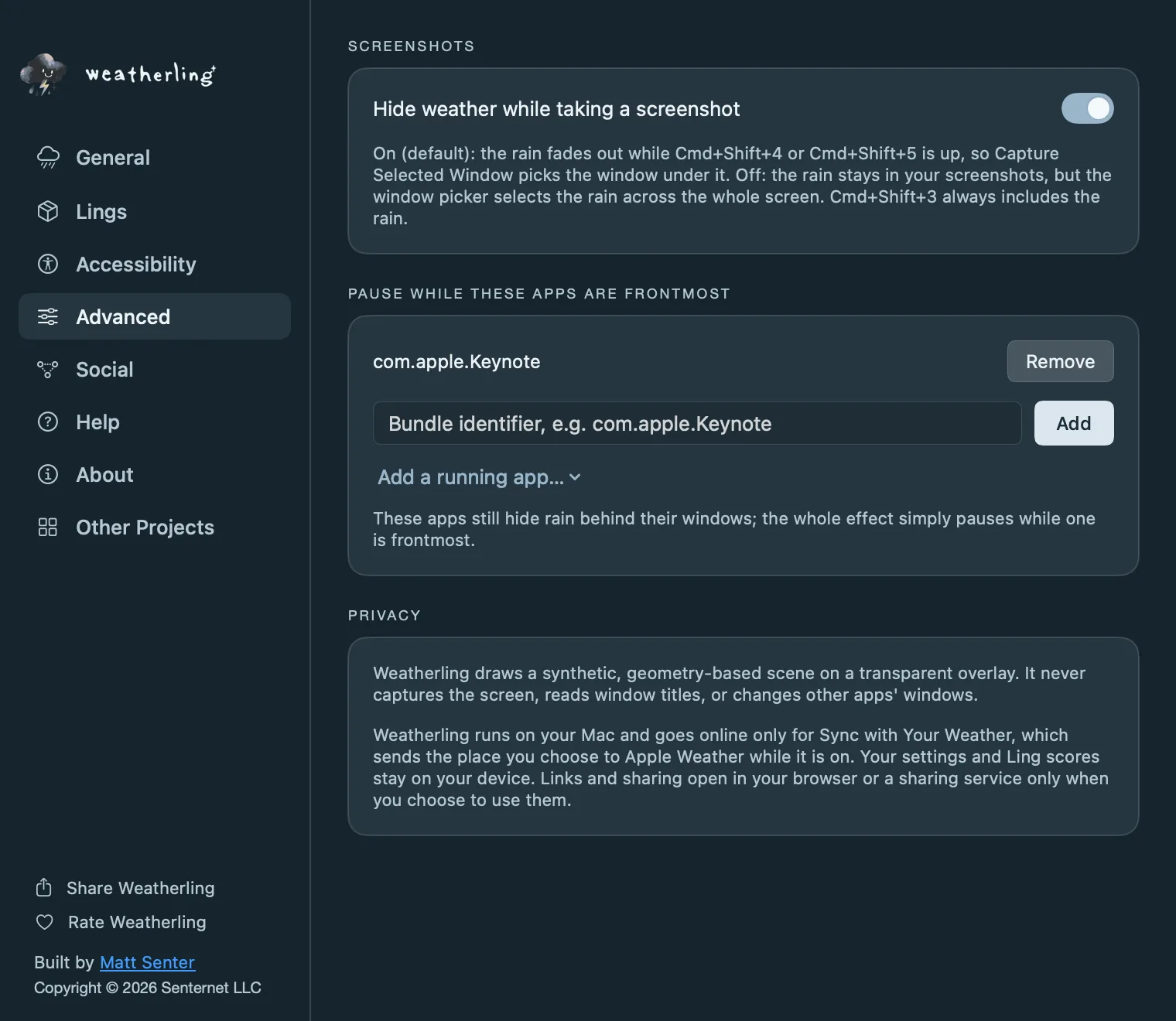
- an app on the Pause while these apps are frontmost list in Advanced is in front, which is handy for Keynote or video calls;
- Reduce Motion is on in System Settings and Show effects even when Reduce Motion is on, in Accessibility, is off.
Taking a screenshot with Cmd+Shift+4 or Cmd+Shift+5 fades the weather out, so Capture Selected Window picks the window under it. Turn off Hide weather while taking a screenshot to keep the rain in your pictures. Cmd+Shift+3 always includes it.
All Settings and the built-in Help
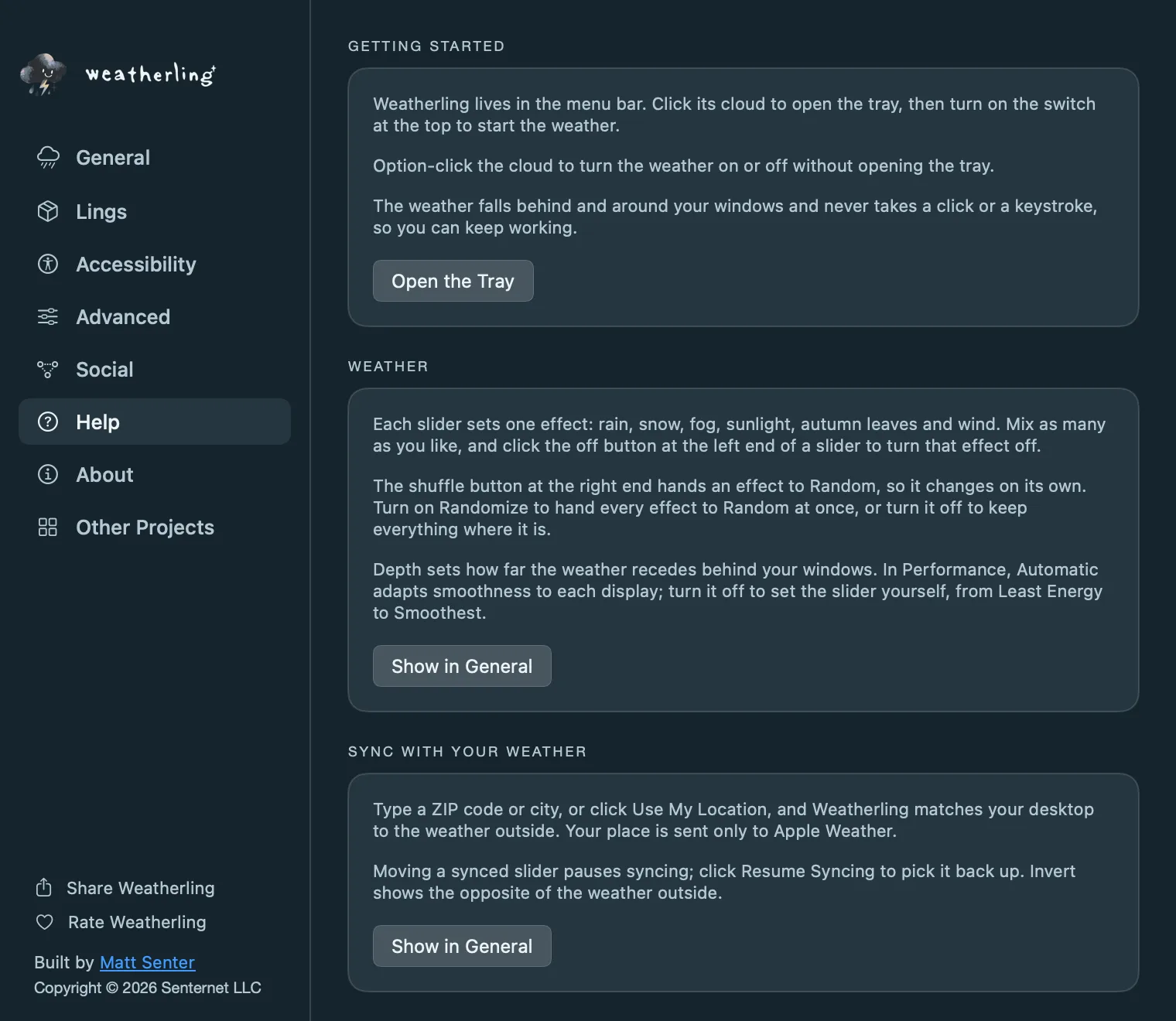
Click All Settings… at the bottom of the tray for everything in one window:
- General: weather sync, launch at login, every weather slider, displays, sound and performance.
- Lings: how often they visit, Ling volume, Interactive, and your collection.
- Accessibility: collecting Lings without dragging, descriptive box labels, points over boxes, and Reduce Motion.
- Advanced: screenshots, apps that pause the weather, and the privacy summary.
- Help: this guide in short, with a button to each setting it mentions.
- About: your version number, with a button that copies it for a support request.
Still stuck?
More answers on this site: