
Blog · · By Matt Senter
Weatherling 1.8: Your scenes and progress, synced with iCloud
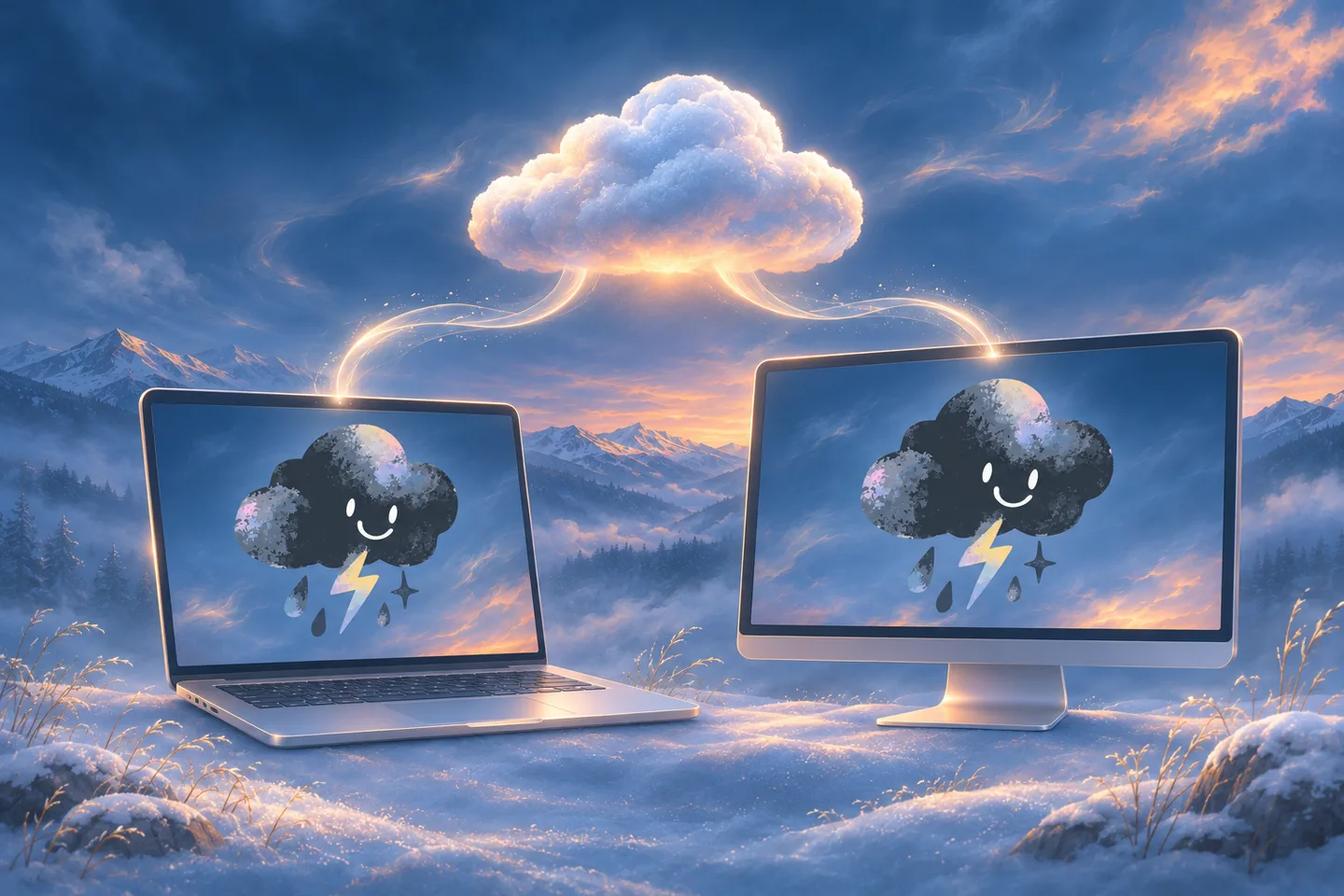
Switch Macs without starting your Weatherling collection over. In 1.8, your saved scenes, Ling collection, and score stay up to date through your private iCloud. The rainy afternoon you saved on one Mac is ready to use on the other.
Alongside iCloud sync, this release brings easier scene management, snow you can push around, a redesigned Settings window, and four new languages. Here’s what’s new.
Your scenes and progress, together in iCloud
Sync with iCloud keeps your saved scenes, Ling collection, and score up to date across your Macs. It uses your private iCloud and is on by default; you can turn it off in the System pane of Settings.
Each Mac keeps its own active weather and settings. That means you can use the same collection of saved scenes on both machines while leaving a quiet snowfall on one and a rainy afternoon on the other.
Your favorite weather, saved as a Scene
The Templates introduced in Weatherling 1.7 are now called Scenes. The new Scenes pane puts every saved scene and its controls together, so you can see what you’ve made and adjust it in one place.
Controls that belong to a scene carry its mark. With Protect scenes enabled, Weatherling asks before a change edits a saved scene. You can also save or revert changes to its name and emoji.
Sharing stays simple: a shared scene link opens directly in Weatherling. If the app isn’t installed, the link offers the App Store instead.
A little snow you can move
Snow now responds when you brush your pointer through it. You can gather it into soft piles or send it tumbling off a window. It drapes over the edges, settles among blades of grass, and falls when you move the window that was holding it up.
You don’t need to open a tool or switch into a special mode. Let some snow settle, then give it a nudge. If you haven’t made it snow on your desktop yet, here’s how to get started.
Settings with room to breathe
The redesigned Settings window opens with a Dashboard arranged like the tray. Effects, Scenes, Sync, Sound, Displays, and System have their own panes, alongside Privacy, Achievements, and Leaderboards. Back and Forward help you retrace your steps, with Command-[ and Command-] as shortcuts.
Two shortcuts work from any app: Control-Command-W opens or closes the tray, and Control-Option-Command-W turns the weather on or off.
Rain and snow now have separate volume controls. You can enable an arrival sound for Lings, too. If you’d like a little more feedback, optional Force Touch trackpad taps respond when your pointer brushes grass or a leaf, and an optional glow shows where a held Ling can land. Both are off until you turn them on.
Small details, all day long
Weather now starts at the very top of the screen, behind the menu bar. Rain splashes and ripples follow exposed window edges more accurately, and the effects fit rounded corners better. Full-Screen Apps lets you choose whether weather stops, continues, or keeps only the near-camera particles.
This release also reduces CPU and GPU work for weather effects, lowers idle activity, and improves Settings responsiveness and memory use. VoiceOver gets improvements to control access, scene protection, and reading order.
And Weatherling now speaks Swedish, Turkish, Greek, and Romanian.
Bring your favorites to your other Mac
If you already have Weatherling, update to 1.8 through the App Store. Leave Sync with iCloud on to keep your saved scenes, Ling collection, and score up to date across your Macs, then choose the weather you want on each one.
You can read the complete release notes, explore the Help guide, or get Weatherling.
Love,
Matt